1
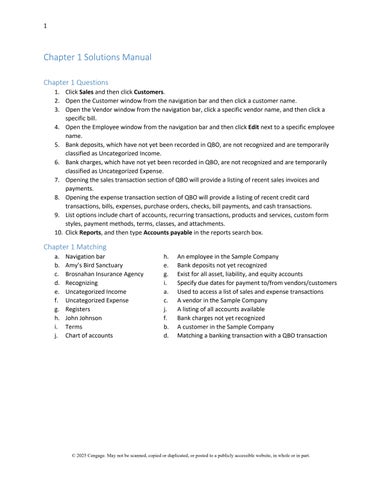
Chapter 1 Solutions Manual Chapter 1 Questions 1. Click Sales and then click Customers. 2. Open the Customer window from the navigation bar and then click a customer name. 3. Open the Vendor window from the navigation bar, click a specific vendor name, and then click a specific bill. 4. Open the Employee window from the navigation bar and then click Edit next to a specific employee name. 5. Bank deposits, which have not yet been recorded in QBO, are not recognized and are temporarily classified as Uncategorized Income. 6. Bank charges, which have not yet been recorded in QBO, are not recognized and are temporarily classified as Uncategorized Expense. 7. Opening the sales transaction section of QBO will provide a listing of recent sales invoices and payments. 8. Opening the expense transaction section of QBO will provide a listing of recent credit card transactions, bills, expenses, purchase orders, checks, bill payments, and cash transactions. 9. List options include chart of accounts, recurring transactions, products and services, custom form styles, payment methods, terms, classes, and attachments. 10. Click Reports, and then type Accounts payable in the reports search box.
Chapter 1 Matching a. b. c. d. e. f. g. h. i. j.
Navigation bar Amy’s Bird Sanctuary Brosnahan Insurance Agency Recognizing Uncategorized Income Uncategorized Expense Registers John Johnson Terms Chart of accounts
h. e. g. i. a. c. j. f. b. d.
An employee in the Sample Company Bank deposits not yet recognized Exist for all asset, liability, and equity accounts Specify due dates for payment to/from vendors/customers Used to access a list of sales and expense transactions A vendor in the Sample Company A listing of all accounts available Bank charges not yet recognized A customer in the Sample Company Matching a banking transaction with a QBO transaction
© 2025 Cengage. May not be scanned, copied or duplicated, or posted to a publicly accessible website, in whole or in part.
2
Chapter 2 Solutions Manual Chapter 2 Questions 1. QBO is limited to four companies per license. QBDT can manage an unlimited number of companies. 2. No, QBO requires an Internet connection. 3. No, QBO does not require the creation of backup files. 4. Both QBO and QBDT were developed in-house by Intuit to capture and report on accounting events. 5. The process of assigning your instructor as the accountant for your company involves a brief interview in which you’ll provide your instructor’s email address and name.
Chapter 2 Matching a. b. c. d. e. f. g. h. i. j.
QBO QBDT Gear icon Payroll Navigation bar icon Magnifying glass Help (?) icon Manage Users Dashboard
h. g. d. a. i. j. b. f. c. e.
Click to access help Click to find past transactions Click to access QBO employee information Online version of QuickBooks Click to add your instructor as your accountant Provides links to QBO tasks and resources Windows desktop version of QuickBooks Click to add any transaction Click to manage your subscription, users, and settings On the left of the Dashboard, it shows a menu of items
© 2025 Cengage. May not be scanned, copied or duplicated, or posted to a publicly accessible website, in whole or in part.
3
Chapter 3 Solutions Manual Chapter 3 Questions 1. Company settings is accessed by clicking the Gear icon and then clicking Account and Settings from the Your Company column. 2. Adding beginning balances only occurs when you are utilizing QBO for the first time and your business has been in operation for some time. 3. Click the Gear icon, click Chart of Accounts, and then click the New button in the upper-right corner of the chart of accounts. 4. The Opening Balance Equity account is also affected when a beginning balance is entered into an account. 5. When you add a new product, you may provide an initial quantity on hand and a related as of date. You also provide the related inventory asset account, sales and purchase description information, the price, the cost, the income account, and the cost of goods sold account used. You must also identify if the item is taxable if the company collects sales tax. 6. When you add a beginning balance to accounts receivable, you must also identify the name of the customer who owes you. 7. When you add a beginning balance to accounts payable, you must also identify the name of the vendor you owe. 8. Retained Earnings is the additional account used when closing the Opening Balance Equity account. 9. Click Reports from the Navigation bar, type Balance Sheet into the Find report by name search text box, and then press [Enter]. 10. Click the balance in the account line of the Balance Sheet report to view the Transaction Report.
Chapter 3 Matching a. b. c. d. e.
Transactions report Trial Balance Journal entry Opening Balance Equity Customer
e. d. g. h. b.
f. g. h. i. j.
Vendor Product Service Account type Detailed type example
i. a. f. j. c.
Entity to whom you sell products/services Account used to offset beginning balances adjustments Merchandise a company purchases from a vendor Efforts made by a company to add value to a customer A listing of the debit or credit balances as of a specific date Dictates where an account appears in all reports Transactions for an account for a specified period Entity from whom you purchase products/services Checking Commonly used to adjust accounts
© 2025 Cengage. May not be scanned, copied or duplicated, or posted to a publicly accessible website, in whole or in part.
4
Chapter 3 Case 1 Trial Balance
© 2025 Cengage. May not be scanned, copied or duplicated, or posted to a publicly accessible website, in whole or in part.
5
Transaction Detail by Account
© 2025 Cengage. May not be scanned, copied or duplicated, or posted to a publicly accessible website, in whole or in part.